Mighty Tasks
V 1.0.0
User Guide
Your Tactical Task Manager Inside Unity
Game development moves fast. Planning should speed you up, not become a second job. Many external tools sit outside the project: you paste links, export screenshots, and manually keep status in sync with what is actually in the repo. The busier you are, the faster that falls behind.
Mighty Tasks keeps planning where the work lives inside the Unity Editor, on top of your real project. Tasks can be scoped to the project, a scene, a GameObject, an area, a prefab, or another asset, so work stays tied to what you are building. Combined with views such as board, Gantt, map, matrix, search, users, and analytics, you get serious planning and tracking without leaving the editor.
Use it as your primary planner , or alongside a studio-wide SaaS tool as a Unity-local layer for concrete, asset-level work.
It is highly optimized to be able to render thousands upon thousands of tasks.
Your data stays on your machine. Core task and project data is stored as JSON under ProjectSettings / MightyTasks , which is friendly to Git and similar workflows. (Editor caches and some personal UI preferences live under Library and UserSettings typical for Unity tools.)
Licensing and value Cost is per seat, but there is no recurring fee youd see in other project management solutions. Pay once, and you get it forever! The user module does not check for seat licenses, we trust you!
Unlimited Multi-Breakdown System (MBS)
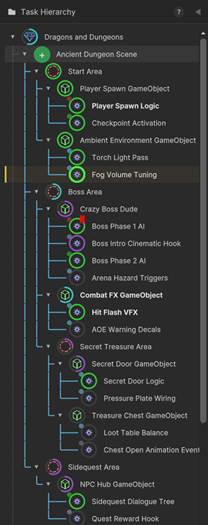 Sounds technical; the idea is
simple. Work often splits: one task becomes many prerequisites. In flat
systems, people cram detail into notes but still track one progress bar. Mighty
Tasks lets you add child tasks under a parent and nest as deep as you need when
work keeps splitting.
Sounds technical; the idea is
simple. Work often splits: one task becomes many prerequisites. In flat
systems, people cram detail into notes but still track one progress bar. Mighty
Tasks lets you add child tasks under a parent and nest as deep as you need when
work keeps splitting.
You do not maintain progress on parents, grandparents, and so on. Child work aggregates upward: parent progress is derived from the tree (with importance-weighted averaging at each level), and parent stage follows children: among tasks not Done, the parent adopts the latest stage in the built-in order (e.g. if anything beneath is in Testing, ancestors reflect that as they update). Parent start/due dates and Gantt bars span the full descendant rangechange a leafs schedule and ancestor spans can move with it, including parent summary rows above leaf rows in the Gantt.
Prefer a simple checklist? Do not nest; leaves behave like ordinary tasks.
Task Editor
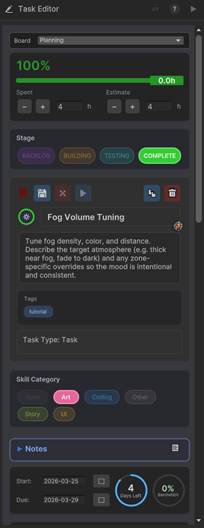 Tasks are as simple or as complex as
you need them to be, and we provide many abilities to give tasks a life of
their own. We didnt want to overwhelm
you with absolutely everything you could ever think a task should track; our
task model captures as little as necessary so that youre spending more time
actioning the task instead of filling out an endless form.
Tasks are as simple or as complex as
you need them to be, and we provide many abilities to give tasks a life of
their own. We didnt want to overwhelm
you with absolutely everything you could ever think a task should track; our
task model captures as little as necessary so that youre spending more time
actioning the task instead of filling out an endless form.
Task Types
Youll notice that when you click the + button on a task to create a child under it, itll be context aware. Theres certain tasks that make sense to be below other tasks, and the context menu will automatically narrow this down.
Project Type
You can only have one, its the root task. Get this to 100%!
Can Create: Scene, Prefab, Asset, Task
Task Type
Generic type, use this for all checklist type actions.
Can Create: inherits the context of the task its parented to.
Scene Type
Every task below this one will be bound to the scene you link to it. You can quickly load / add-load via these tasks. Also, if you end up iterating Cave1 to be Cave1a you must manually relink to the Cave1a test scene (automating this was considered but its best to just give you control over this)
Can Create: Area, GameObject, Asset, Task
Area Type
A spatial area in the scene such as a boss area, town, secret area, etc. Can be drawn in the SceneView and will reveal all GameObjects that rollup to it
Can Create: Area (unlimited nesting), GameObject, Asset, Task
GameObject Type
A specific GameObject being worked on, can link directly to the object. When selected, the SceneView will show a special HUD that lets you zoom and rotate around the GameObject.
Can Create: GameObject (unlimited nesting), Asset, Task
Prefab Type
A prototype GameObject that isnt tied to a specific scene. When selected will show all instances of linked Prefab in the SceneView.
Can Create: Prefab (unlimited nesting), GameObject, Asset, Task
Asset Type
Any type of art or code or other file-based data. When selected will show all instances of linked Asset in the SceneView.
Can Create: Asset (unlimited nesting), Task.
Board
A simple dropdown to let you select from already created Boards (more on this in the Boards section).
Progress
How many hours remain before this task is done, abstracted into a percent.
The minimum time for a task is 30 minutes, and tasks are measured in hours. You can increment your time logged in 30-minute steps. You can set the estimated time to however long you want, however if it exceeds 6 hours itll recommend you break the task down into subtasks. We highly recommend you do that, but leave the choice to you.
By default, Progress is determined by the hours spent vs estimated. You may choose to select Stage Based or Manual mode instead. Learn more about these options further on.
Stages
Backlog
Youre not really working this yet, and might never.
Building
You decided this actually needs to be implemented and have actively started working on it.
Testing
The task seems to be built, youre now stress testing it against all the ways it might fail or glitch.
Complete
The progress is 100%? Set it to complete. Note that it will NOT auto-complete, so you could have a task still on the Testing stage but not actually Complete. This is by design, we want you to actually confirm youre done because perhaps you simply logged a few more hours on the task, and it momentarily is higher than the time estimate but you feel you do indeed need more time. So for a second, itll say 100% complete, but then you add three more hours to the estimate, and now its 80% complete.
Theres a convenience built in if you click Complete BEFORE you update the time spent to match the estimated time. As a shortcut, itll just ask you how long it took to complete the task and then set the Spent and Estimate to match that value and set it as complete. This is handy for quick and small tasks.
Blocked
A task cannot logically be completed if it depends on a task that itself isnt completed yet. The COMPLETE button turns into a rectangular BLOCKED button in this situation. The tooltip will mention which tasks are blocking, or you can scroll down to the dependencies section to see a more detailed view.
Bookmarks
Any task can bookmark the current SceneView position. Note that this is allowed on ANY type of task, and it sometimes doesnt make sense to bookmark a spatial SceneView position for a Prefab task, since a spatial position is usually dependent on being in a scene. But sometimes you do want to do that, so we leave it up to you to decide. Simply hit the Save icon to save the SceneView position. The X button to clear the bookmark. And to use it, click the > button (hover over it to preview the destination, this is a real-time render of that location so it is ALWAYS up to date)
Clone & Delete
Cloning
Copies the task in every detail and makes it a sibling to the original. It also copies the dependencies, so you might want to remove those after.
Delete
Removes the task. Only children can be deleted, to remove a parent you must first move its children or delete them first. When a parent has no children, it automatically turns back into a child task and then can be removed.
Title & Description
Keep titles very short so things remain readable on the views (there is no limit to how long titles can be, however they may get truncated if too long on certain views). It is optional but highly recommended to be in the habit of describing the intention of the task.
Skill Category
What skills are required to be able to actually work on this task? Setting this will help you choose which user should be assigned to it. You may create custom skills in the Settings window, the default ones cannot be removed.
The default options are: None, Art, Coding, Other, Story, and UI
Notes & Annotations
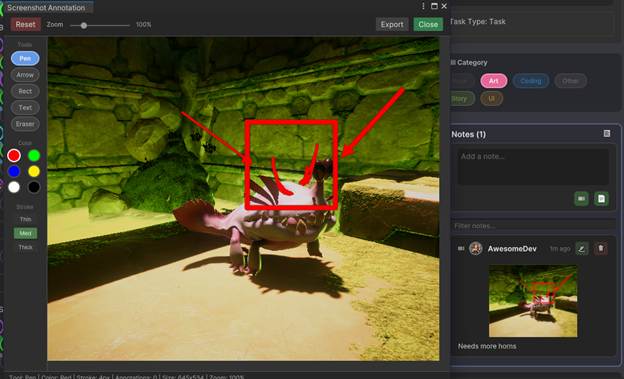
Write comments or draw observations either for yourself or other users that might be working on the same task.
Write something in the textbox, then hit either the Camera or Note icon to post. The Camera button will screenshot an active Unity Window (typically youd choose the SceneView, but maybe theres something weird in the Inspector?). A screenshot note can have its text edited (text is optional), but text notes cant later have a screenshot added (just make a new note as needed).
Notes will be collected in the Board view, so you can see concerns about the tasks being worked on all at once.
Clicking on a screenshot opens the Screenshot Annotation window. This is a simple, yet extremely useful Paint clone that lets you draw all over the screenshot. You can even export a combined PNG and then use the annotated image in other apps.
Start & Due Dates
Use the date picker buttons to choose these.
Days Left (Smart)
This is not just a datediff ( ) between the two dates. It accounts for what days your studio is open (closed on weekends? Then weekends dont count), but then also accounts for who you assigned to the task.
Example: a tasks dates spans from Monday to Friday on a certain week (and its currently Monday). However, your studio is only open Tues/Weds/Thurs, so now the task isnt due in 5 work days, its due in 3 workdays! Say you add a user to the task that only works on Weds. Now the task is due in 1 workday!! Seeing this, you add another user to also work the task, this user works fulltime, so now were back to 3 workdays.
This way youre not given false comfort that you have more workdays to work on the task than you actually do!
Bandwidth (Smart)
Bandwidth compares hours left on the task to how many hours your assignees can still work before the due date; you want that percentage low enough that youre not banking on a perfect week.
Next to Days Left, Bandwidth answers a different question: Do we still have enough person-hours before the due date to finish whats left?
It uses:
Remaining work
Hours still to do on the task (your estimate minus time already logged).
Assignee capacity
For each assigned user, it counts how many of their working days fall between today and the due date, and multiplies by that users hours per day. It adds those hours up across everyone on the task.
So, Bandwidth is really total assignee hours still available before the due date compared to hours of work left.
Important: Bandwidth only runs when the task has a due date and at least one assignee. It uses each persons work-week (which days they work). It does not use the studio calendar the same way Days Left doesso if your doc stresses studio hours for Days Left, you can add one line: Bandwidth is driven by assignees schedules and hours-per-day.
What you want to see
You want the remaining hours to be comfortably below the total bandwidth hours before the due date.
The UI shows that as a percentage: roughly (hours left) (total assignee hours available).
Lower percentage = more slack (good).
Higher percentage = youre using most of the available time (risky).
Over capacity (or a full red ring) = remaining work needs more hours than your assignees have before the due datethats a signal to move the due date, add help, or cut scope.
What counts as good?
Theres no single magic number for every team, but as a rule of thumb:
Roughly 80% or below - usually shown as a safer / within capacity style state; you still have some buffer.
Above ~80% - the UI treats this as high utilization; youre cutting it close if anything slips.
Over 100% - youre over capacity; the schedule doesnt math out without a change.
Priority & Importance
This is not a precise science, just estimate whether this task is a nice to have or vital importance, and if it should be done whenever or done very soon! priority. Just click on the quadrant as you feel best. This might seem like a trivial thing to do on a task or two, but once you have 100 tasks in play, seeing how you ranked each task in terms of importance and urgency will be a vital efficiency hack. Youll be able to view all these values on a big quadrant grid in the Matrix view. This is completely option but a highly recommended best practice, it only takes a second to click it.
Dependencies
The Task Editor has a very convenient dependency selection process. Just hit the New Dependency button and you can select other tasks on the Task Hierarchy or any other view, and theyll be added to a selection staging section. Hit confirm, and all the tasks you selected are now required to be completed before the selected task can be completed. There is a recursive loop check so that we can minimize the possibility of task A relying on B relying on C relying on A from being accidently set.
The main rule here is that a task cannot be completed until all of the other tasks it depends on are also completed. You CAN work on dependent tasks simultaneously, so you can work on the Goblins Mesh, and start rigging its attack animation, but you cant complete the attack animation until the mesh is fully complete.
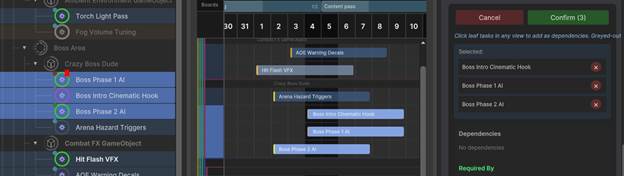
You could ignore this functionality if you wish, but carefully setting this up task by task is extremely helpful in preventing future bugs. It stops you from thinking youre done a task when you forgot to polish the rest of another task it depends on first.
Users
A sophisticated User selection lets you know which of your users might be best suited to being assigned this task, but also calculates if they have the hours available in the date range to do it.
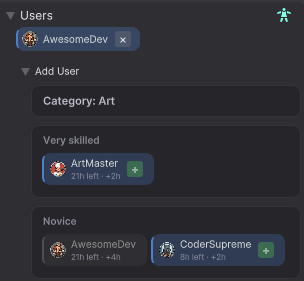
You can assign as many users to a task as you desire. Their workload gets split evenly based on the hours estimated (so if it takes 2 hours and 2 users are assigned, we assume 1 hour per user). We know this isnt ALWAYS the reality, one user might put 1.5 hours in and the other only a half hour, but the nuance here isnt worth the complexity. If you really want to break it out like that, split it into two tasks and assign to each person. In most situations, thats probably a good use of your planning time, though.
Tags
A simple yet sophisticated Tag tagger. Either hit the + button on tags you already made in other tasks, or if its something new just type the name in the box and hit + to add it. Tags are just meta data that are useful for filtering.
Admin
For advanced users only. Tasks are stored as JSON files. You might want to inspect the file itself (if youre perhaps troubleshooting with us), or if youre really ambitious, you might even want to build your own pipeline to ingest the JSON data and use this data in your own apps or processes.
Parent Rollups
The following data is controlled only within a child task and gets aggregated and combined within the parent(s)
Progress
The calculated progress of the children is combined each depth level. You can audit the progress value by unfolding the Contributors section which is only visible on Parent tasks it will show you each Child Task thats being considered in the calculation and their current values.
Stage
Will take the highest uncompleted stage from the children, so if any of the children are in the testing stage, the parent is being tested too by effect.
Dates
Takes the Minimum and Maximum of the children so itll always span their values.
Matrix
averages out the Priority and Importance of the children, will visualize this in the Task Editor
Dependencies
Parents cannot be dependent, so this is disabled.
Users
You cant assign a parent, but the Task Editor will show you whos assigned in the children.
Tags
Collects all tags from the children, parents do not get their own tags.
Progression Modes
Time Based
If skinning a mesh would likely take 3 hours of work, arent you half done when youre 1.5 hours in? This is the default mode. Stages still matter, theyre the context of the time logged but the testing phase might take an hour itself on some tasks, or five minutes on other tasks.
This mode plays very well with Users since we can then track exactly how many hours are allocated to each user and if they have the capacity to actually complete the given task.
Stage Based
A less micro approach is to just use the stages of the task to set the progress. You can adjust these settings in the Settings menu but the default values are:
Backlog 0%
Building 40%
Testing 75%
Complete 100%
Manual
You just adjust the progress slider on each task. You can still track time and stages, they just have no effect on the progress.
Boards
 Boards
are time-bounded containers for work. Each board holds a set of tasks and a
date range, giving you a clear picture of what needs to happen and when. Think
of them as sprints, milestones, or simply "this week's focus."
Boards
are time-bounded containers for work. Each board holds a set of tasks and a
date range, giving you a clear picture of what needs to happen and when. Think
of them as sprints, milestones, or simply "this week's focus."
The Carousel
A horizontal strip of board cards appears at the top of the Board, Map, Gantt, and Matrix views. Click a card to select that board and filter the current view to its tasks. The selected board gets a gold highlight border.
Creating a Board
Click the + button in the actions row (or the large + card in the carousel) to open the board editor. Give it a name, and optionally set a start and end date. New boards default to Planning status until you schedule them.
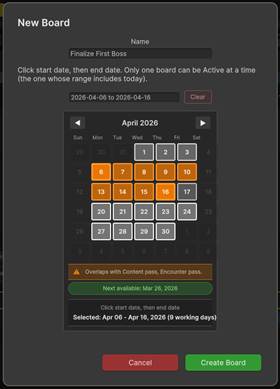
Board Statuses
Statuses are computed automatically from dates and task state; you do not set them manually (except by starting or completing a board).
- Planning Has tasks but no dates set yet.
- Active Today falls within the board's date range and no other board's range overlaps.
- Upcoming Scheduled in the future, no overlap with another board.
- Overlap The board's date range intersects another non-complete board's range. This is an orange warning state that tells you to resolve the scheduling conflict.
- Expired The end date has passed and the board was not marked complete.
- Complete All work finished (or you explicitly completed the board).
- Empty Board exists but has zero tasks assigned.
The status-filter buttons let you toggle which statuses are visible in the carousel and board list. Each button shows a count of boards in that status.
Active Board
Only one board is allowed to be active at one time. The board with dates between the current date is automatically the active board ( afterall , it doesnt make sense to set a future board as active, or an older board). This forces you to keep the boards up to date.
If two or more boards qualify as Active, because only one can actually be active, then the one with the earliest date becomes active. If both those boards have the same start date then it puts both boards as Overlap status and neither is active. This forces you to actually decide which board youll be working on at this point in time.
When a Board Expires
If a board's end date passes with unfinished tasks, an "Expired" modal offers two choices:
- Roll Over Creates a new board (incrementing the name, e.g. "Board 2" → "Board 3") and moves all incomplete tasks to it. The expired board is marked Complete and archived.
- Dissolve Sends incomplete tasks back to the Backlog board. The expired board is archived.
Overlap detection
The auto-status engine checks every refresh whether any non-backlog, non-complete boards share overlapping date ranges. When two or more boards' ranges intersect, all of them flip to the Overlap status (orange border). This applies both to boards whose range includes today and to future boards that overlap each other. Resolve the conflict by editing dates or completing one of the boards.
Sorting boards
The sort button (arrows icon) in the actions row opens a menu with six options:
- Name (A-Z / Z-A)
- Start date (earliest / latest first)
- End date (earliest / latest first)
Filtering by assignee
User workload coins appear on the board. Click a user coin to filter the Kanban to only that user's tasks within the selected board.
Boards as a filter in other views
The selected board is not just a Kanban-view concept. It filters across views:
- Kanban Traditional view for board completion, this is where youll track the progress and completion of each board.
- Gantt Toggle the Board button in the toolbar to show board span bars above the timeline, visualizing each board's date range as colored bars (with progress fill and overlap detection). A board filter chip narrows the Gantt to only tasks assigned to the selected board (plus their ancestors for hierarchy context).
- Map / Matrix The carousel is shared; picking a board filters which tasks appear in those views as well.
This cross-view filtering means you can plan on the Board, visualize timelines on the Gantt, and spatially organize on the Map all scoped to the same board.
Kanban View
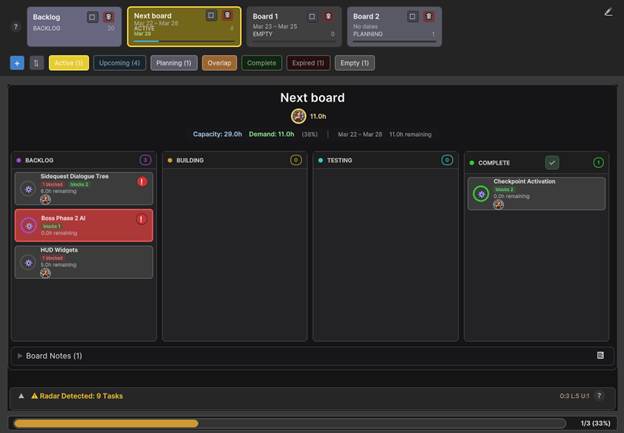
When you select a board from the carousel, this view shows its tasks organized into stage columns with live capacity, workload, progress, and warning instrumentation around it.
Layout
The view is divided into:
- Board header Title, workload coins, and capacity stats.
- Stage columns Four Kanban lanes: Backlog , Building (InProgress), Testing , and Complete (Done). Each column shows a count badge of tasks it contains.
- Progress bar A horizontal bar below the header showing the done/active ratio as a percentage, color-coded green (>=80%), yellow (>=50%), or orange (<50%).
- Board Notes A collapsible foldout at the bottom showing note feeds for the board's tasks, with a "Selected Task Only" toggle.
- Radar bar Appears at the bottom when the Active board is selected (more below).
Task cards
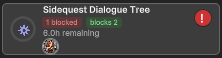
Each card shows:
- Progress icon The radial scope/stage icon (same as the hierarchy).
- Title Truncated with ellipsis.
- Dependency chips If the task has blocking or blocked-by dependencies, small chips appear.
- Remaining hours e.g. "2.5h remaining" ( task.Remaining ).
- Assignee avatar coins Up to three overlapping circular avatars (or initials). If more than three, a "+N" label appears.
- Priority tint Card background color is derived from the task's Priority value. Unassigned tasks get a red accent border instead.
Click a card to select it in the Task Editor. Right-click for a context menu. Cards support drag-and-drop via TaskCardDragManipulator to move tasks between stage columns (changing the task's Stage field).
Board Medic
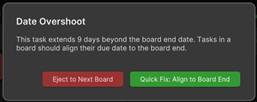
On the Active board, individual cards can show a red "!" badge in the top-right corner if their due date overshoots the board's end date ( RadarDetectionService.HasDateOvershoot ). Clicking it opens a modal with two options:
- Align to Board End Clamps the task's DueUtc to the board's end date.
- Eject to Next Board Moves the task to the next planned board and shifts its dates forward by the current board's duration.
Workload coins
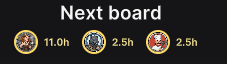
A row of circular avatar coins sits in the board header. Each coin shows a user's avatar (or initials) and their total remaining hours across all tasks assigned to them on this board. The hours are the sum of task.Remaining for that user's assignments.
Click a coin to filter the Kanban to that user only the coin gets a gold highlight border and only their cards remain visible. Click again to clear the filter. An "unassigned" coin appears if any tasks have no assignees, letting you filter to those as well.
Capacity and demand
The stats row in the header displays three key numbers:
- Capacity Total working hours remaining between now and the board's end date, calculated per-user. The engine walks each calendar day from today to the board end, checks whether it is a work day for each assigned user (respecting per-user DaysAtWork and HoursPerDay ), and sums available hours. For today specifically, it uses the remaining studio hours left in the current workday rather than the full day.
- Demand Sum of remaining hours across all tasks on the board.
- Ratio Demand as a percentage of capacity, color-coded:
- Green: demand <= 80% of capacity (comfortable).
- Yellow/amber: demand between 80%100% (tight).
- Red: demand exceeds capacity (overloaded).
The row also shows the board's date range and total remaining hours.
Predicted completion date
The board calculates when remaining work will finish using PredictCompletionDate . Starting from today, it walks forward through the studio work schedule (skipping non-work days), consuming remaining hours at the configured daily rate, and returns the predicted finish date. The result appears in the column header area, color-coded: green if within 7 days, yellow within 14, red beyond.

Progress bar
Below the Radar pullout, a bar tracks completed vs. active tasks for the selected board. The fill width is completedTasks / totalActiveTasks * 100%. The bar color shifts from orange through yellow to green as completion percentage rises.
Completing a board
The checkmark button in the COMPLETE column header is disabled until every task on the board reaches Done .
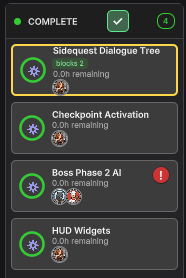
When all tasks are done, the button gets a glowing animation to draw attention. Clicking it triggers a triple-confirm modal (to prevent accidental completion). Upon confirmation, the board is marked Complete and archived, its end date is set to today, and the Board Retrospective appears.
Board Retrospective (victory post-mortem)
Once a board is complete, the Kanban columns collapse to show only the Done column alongside a full retrospective panel containing:
- Summary card Completion date, actual duration vs. planned duration, and whether the board finished early, late, or on time. Also shows total task count and hours logged.
- Team Contributions Top 5 contributors by logged hours (from TimeLedger entries), displayed as avatar coins with hours and percentage bars. The top contributor gets a gold highlight.
- Activity Heatmap A bar chart of task completions over the board's lifespan. For boards under 14 days, it shows daily granularity; for longer boards, it groups by week.
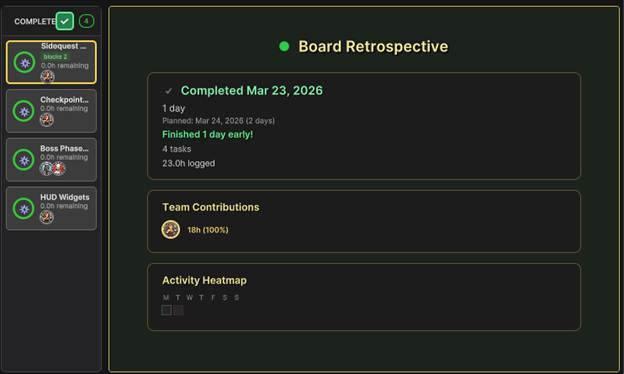
Completing can also be undone : clicking the checkmark on a completed board offers to un-complete it, setting it back to Active.
Radar detections
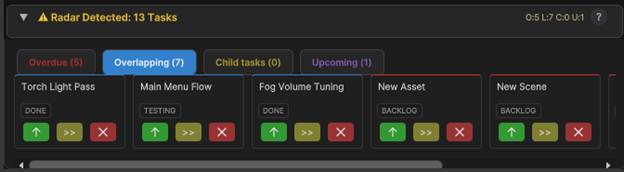
When the Active board is selected, a collapsible radar bar appears at the bottom. It surfaces tasks that are not on the active board but may need attention, organized into four categories:
- Overdue Past due, not done, and not on this board.
- Overlapping Start/due dates overlap this board's date range but the task lives on another board.
- Upcoming Start date is near the board's end (within a configurable buffer, default 48 hours).
Each detected task can be Accepted (moved onto the active board) or snoozed.
Expired board handling
When a board's end date passes with unfinished tasks, a modal prompts you with two options:
- Roll Over Creates a successor board (e.g. "Board 3" from "Board 2"), moves all incomplete tasks to it, and archives the expired board as complete.
- Dissolve Sends incomplete tasks back to the Backlog and archives the expired board.
Board notes
A collapsible "Board Notes" section at the bottom aggregates note feeds from tasks on the selected board. A toggle lets you filter to only the currently selected task's notes, useful for quick context without switching to the Task Editor.
Map View (Mind Map)

The Map view is an interactive, spatial mind map of your task hierarchy. Tasks are rendered as rectangular nodes connected by wires; parent-child relationships flow left to right, and you can pan, zoom, expand/collapse, rename, create, and link tasks directly on the canvas.
Canvas and navigation
The view is a pannable , zoomable viewport over a large canvas.
- Pan Middle-Click and drag the background to pan the canvas.
- Zoom Scroll wheel zooms in/out (range 10%100%).
- Smooth pan When selecting a node that is off-screen, the view animates to bring it into view.
Nodes
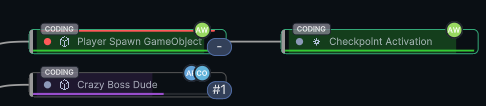
Each Node displays:
- Stage stripe A 4px color bar on the left edge, tinted by the pipeline stage.
- Priority accent line A subtle top-edge glow when priority is high.
- Type icon The task's scope type icon (Scene, GameObject, Prefab, Area, Asset, Task).
- Title The title of the task.
- Progress bar How close to completion are we?
- Category badge Floats above the top-left corner if the task has a category.
- Priority dot An 8px circle colored by priority value.
- Expand/collapse button Appears on parent nodes showing the child count. Click to toggle children or press Space .
Keyboard shortcuts
| Key | Action |
| Space | Toggle expand/collapse on the last-hit node |
| F2 | Begin inline rename on the selected node |
| Tab | Create a child task under the selected node (opens a scope-type menu) |
| Enter | Create a sibling task next to the selected node |
| Delete / Backspace | Delete the selected task (with confirmation) |
| Arrow keys | Navigate to the nearest node in that direction |
Auto-layout
A top-down, left-to-right tree layout starting from the root node. The layout respects expand/collapse state collapsed subtrees take no vertical space.
Expand and collapse
Each parent node has a button showing its child count. Click it (or press Space ) to toggle. Right-click a node to access Expand All / Collapse All for the entire subtree beneath it. Expansion state is stored per-node in MightyTasksLocalSettings and persists across sessions.
Inline rename
Double-click a node or press F2 to enter rename mode. A text field replaces the title label; press Enter to save or Escape to cancel.
Creating tasks
- Tab With a node selected, opens a scope-type dropdown (the same context-aware types as the hierarchy + button), creates a child under the selected node, expands the parent, and selects the new node for immediate rename.
- Enter Creates a sibling next to the selected node (a child of the same parent).
Both operations inherit scope data from the resolved context anchor, the same as the hierarchy and board task creation.
Dependency linking
The map supports a link mode for creating finish-to-start dependencies between tasks:
- Enter Depenency mode (from the task editor pane).
- Click a target node(s) to complete the link. (only final leaf children can be dependent)
- Press Escape to cancel.
Dependency visualization
When a node is selected, the map draws colored lines for its dependencies:
- Blocked By (red lines) From each task that this task depends on, pointing toward the selected node.
- Required By (yellow lines) From the selected node to each task that depends on it.
All related dependency nodes are force-materialized (bypassing virtualization) so the lines are always visible.
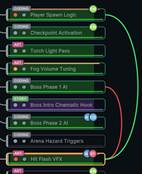
Map lock
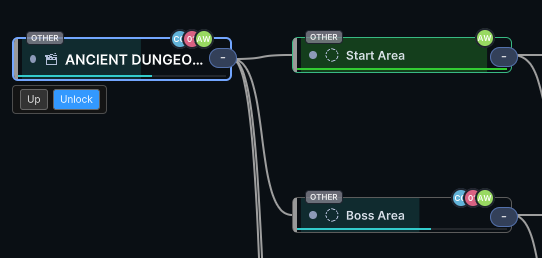
By default, the map follows the global selection selecting a task in the hierarchy or board changes the map's root context. The Lock button in the mini-toolbar right below the root node pins the map to its current root, preventing external selections from changing what is displayed. A notice bar appears when the locked root is out of range, with an Unlock button to release the pin. Lock state is persisted in local settings.
Up button
The Up button in the mini-toolbar navigates one level up in the hierarchy, selecting the parent of the current root. This effectively "zooms out" the map to show the broader context.
Gantt View
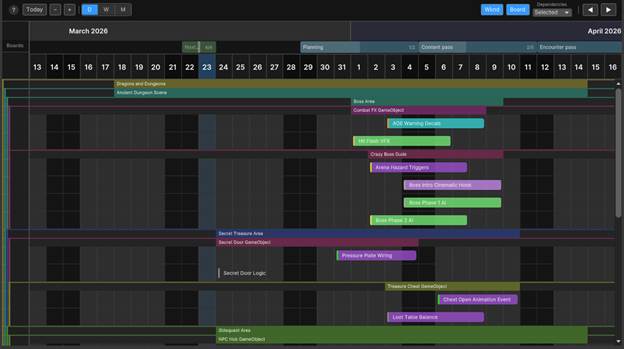
The Gantt view is a horizontal timeline where each leaf task is a bar (pill) spanning its start-to-due date range, and parent tasks span their own summary rows above their children. It is the primary view for seeing schedule overlaps, dependencies, and how boards fit against actual work.
Layout
The view is composed of:
- Toolbar Navigation, zoom, time scale, toggles, and dependency controls.
- Timeline header Day/week/month column labels, with an optional month overlay row and board span overlay row above the columns.
- Depth Chart A unique view that shows how nested parent tasks envelop the timespans below (follow the colored ranges).
- Timeline rows The scrollable area containing the task bars. Each leaf task gets one row; parent tasks get spacer rows that span the date range of their children.
- Dependency overlay arrow lines between dependent tasks.
- Selection overlay A full-width highlight band covering the selected task and all its descendants.
Time scales
View the chart in (D) aily , (W) eekly , or (M) onthly intervals!
Navigation
- Today Scrolls the viewport so today's column is visible.
- Back / Forward arrows ( ◀ ▶ ) Shift the view by one unit (day in Days mode, week in Weeks, month in Months).
- Middle-mouse drag Pans the viewport horizontally (timeline panning).
Weekends
The Wknd toggle controls whether weekend days appear as columns.
Task bars
Each bar shows:
- Stage color Background tinted by task stage (Backlog, InProgress, Testing, Done).
- Priority accent A 3px left-edge stripe colored by Priority.
- Progress fill A semi-transparent white overlay filling from the left by the task's display progress percentage.
- Title Inline label, truncated with ellipsis.
- Tooltip Title, start/end dates, stage, and progress percentage on hover.
Bar interaction (drag to reschedule)
Bars support three drag modes depending on where you click:
- Left edge (within 8px of the left side) - drag to change the start date while keeping the end date fixed.
- Right edge (within 8px of the right side) - drag to change the due date while keeping the start date fixed.
- Middle - drag the entire bar to shift both start and end dates together, preserving the duration.
During a drag, dependency constraints are enforced - the bar will not be allowed to cross the boundary of a blocking task's dates, and a toast appears if you reach the limit. On mouse-up, the new dates are committed to the task and the chart rebuilds.
Parent rows
Parent tasks do not get their own bar. Instead, a spacer row appears above a group of sibling leaf rows. The spacer shows the parent's title on the left pane and a fill bar spanning the rolled-up date range (min start to max due of descendants). Spacer bars use a muted version of the parent's scope color.
The left pane uses depth bands thin colored strips (3px each) on the left edge of each row to visualize nesting depth. The left pane width auto-adjusts to fit the deepest nesting level.
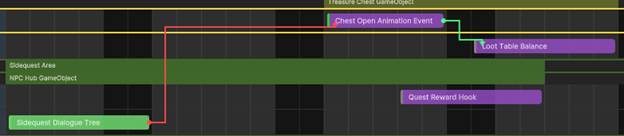
Dependency arrows
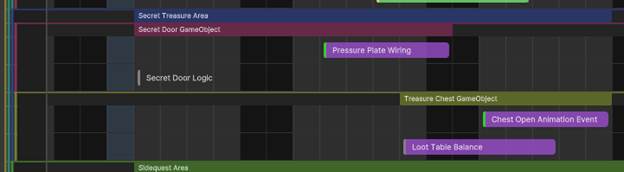
Circuit lines represent dependencies. Red means the task it came from has to be completed first. Green shows what tasks depend on the selected task being completed. You can choose to view these arrows only based on selected task, or show all, or none.
Board spans
Toggle Board in the toolbar to show a row of colored bars above the timeline columns, one per board (bucket). Each span:
- Is positioned from the board's start date to its end date.
- Shows a progress fill based on done/total task count.
- Is color-coded and labeled with the board name and task count.
- Clicking a span sets the board filter for the Gantt.
- Overlapping board spans are stacked into lanes; collision detection assigns each to a vertical lane to prevent overlap.
Board spans respect the same visible status filters as the carousel (only Active, Upcoming, etc. that you have toggled on).

Board filter
When a board is selected (either from the carousel or by clicking a board span), a filter chip appears in the toolbar. The Gantt then shows only tasks assigned to that board plus their ancestors (for hierarchy context). Press Escape to clear the filter.
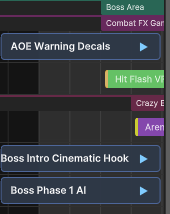
Offscreen labels
When a task bar scrolls out of the visible horizontal range, a clickable chip appears on the appropriate side of the row:
Matrix View (Priority / Importance)
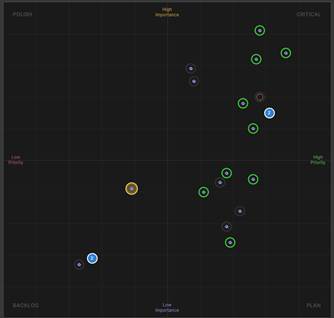
The Matrix is a two-dimensional scatter plot that maps every leaf task onto a Priority (vertical) vs. Importance (horizontal) grid. It is the Eisenhower-style decision tool inside Mighty Tasks designed to help you answer "what should I work on next?" at a glance.
Quadrant labels
| Quadrant | Position | Meaning |
| CRITICAL | Top-right (high priority, high importance) | Do first |
| PLAN | Bottom-right (low priority, high importance) | Schedule deliberately |
| POLISH | Top-left (high priority, low importance) | Quick wins / polish |
| BACKLOG | Bottom-left (low priority, low importance) | Defer or drop |
Drag to reposition
Click and drag any dot to change its priority and importance. During the drag, the dot follows the mouse and the task's Priority and Importance fields update in real time. On mouse-up, the change is committed and the matrix refreshes.
This is the fastest way to triage tasks: just grab a dot and move it to the quadrant where it belongs.
Clustering
When multiple tasks land close together (within 24px), they are grouped into a cluster : a blue circle with a white count badge showing how many tasks overlap. This prevents dots from piling on top of each other.
- Click a cluster to expand it tasks fan out in a circular arrangement around the cluster center so each dot becomes individually visible and draggable.
- Click the expanded cluster again to collapse the individual dots back into the cluster blob.
Expanded cluster state is preserved across refreshes via the snapshot system (using stable cluster keys derived from sorted task IDs).
Board filtering
The Matrix respects the selected board from the carousel. If a board is selected, only leaf tasks assigned to that board appear on the grid.
This makes the Matrix especially useful as a board companion: select a board in the carousel, switch to Matrix, and triage only that board's work.
Leaf tasks only
The Matrix only plots leaf tasks (tasks with no children). Parent tasks are excluded because their priority and importance are rolled up from children editing them here would conflict with roll-up logic.
When to use the Matrix
The Matrix is ideal for two situations:
- Triage You have a board or backlog full of tasks and need to decide what matters most. Open the Matrix, drag tasks into the right quadrants, then focus on Critical first.
- Sanity check If your Critical quadrant is overloaded, you have too much high-priority high-importance work in flight. Move things to Plan or split tasks via the MBS system to reduce scope.
Users
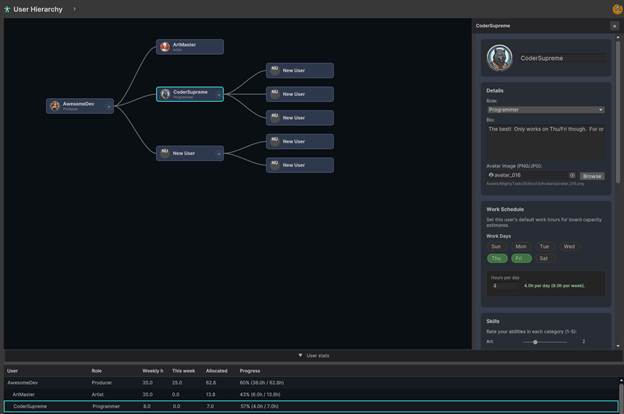
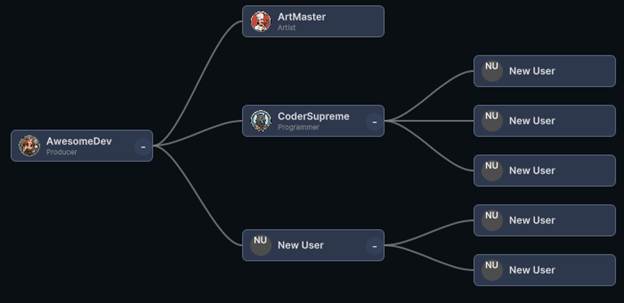
The Users view manages your team. It is a spatial hierarchy canvas where user cards are connected by manager/report lines, paired with a right-side editor panel and a bottom spreadsheet for workload stats. No authentication is involved users are lightweight local profiles that drive task assignment, capacity calculations, and workload distribution.
User model
Each User stores:
| Field | Purpose |
| Name | Display name (required) |
| Role | Job title/role (e.g. "Lead Programmer") |
| Bio | Free-text description |
| Avatar | Path to a PNG/JPG image, many fun generic avatars included |
| Manager | ID of the user above them in the org tree (empty for top-level) |
| Hours per Day | How many productive hours this person works daily (default 7, range 024) |
| Days at Work | Bitmask of working days (default MonFri). Each day of the week can be toggled independently |
| Skills | Each a category string + 15 rating |
| Hide Help Buttons | Per-user preference to hide the ? help buttons throughout the UI |
Users are stored as JSON under ProjectSettings / MightyTasks /{ projectId }/Users/ one file per user, source-control friendly.
Hierarchy canvas
The top half of the view is a pannable , zoomable canvas (same interaction model as the Map view):
- Middle-mouse drag to pan.
- Scroll wheel to zoom (10%200%).
- Users are laid out left-to-right : managers on the left, their reports branching to the right, with Bezier connector lines between them.
Each user is a card showing avatar (or initials), name, and role.
Creating users
- No users yet Right-click the empty canvas and choose "Add first user."
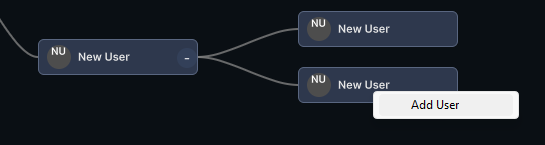
- Under an existing user Right-click any user card and choose "Add User" to create a report under that manager.
Selecting and editing
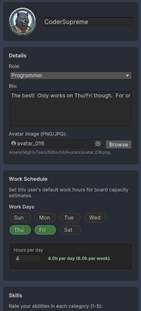
Click a user card to select it (highlighted with a teal glow border). The User Editor panel slides open on the right side, organized into collapsible section cards:
-
 Header Large avatar
circle + name text field.
Header Large avatar
circle + name text field. - Details Role dropdown (from a predefined list of game-dev roles) and bio text field.
- Work Schedule Hours per day slider and day-of-week checkboxes. These values feed directly into capacity calculations the Kanban board's "Capacity" figure uses each assigned user's HoursPerDay and DaysAtWork to compute available hours.
- Skills Add/remove skill categories with 1 5 star ratings. Skills can be renamed across the user.
- Assigned Tasks Lists tasks currently assigned to this user.
- Manager Shows/changes the manager relationship.
- Preferences Toggle to hide help buttons.
- Actions Delete user (with confirmation).
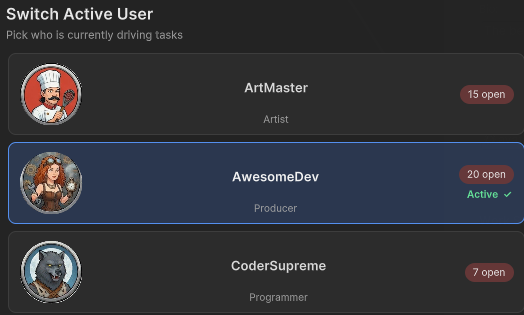
Active user
One user can be set as the active user (via the header dropdown in the main window). The active user determines:
- Who gets auto-assigned to new tasks.
- Whose time entries are logged when using the timer.
- Whether help buttons are visible (based on that user's HideHelpButtons preference).
User stats spreadsheet
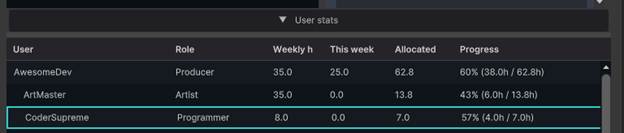
A collapsible pane at the bottom shows a tabular view of all users with workload statistics. It is toggled via the "User stats" bar (chevron up/down), and its height is adjustable via a drag splitter (min 200px). The spreadsheet auto-refreshes when tasks or time entries change.
Security notice
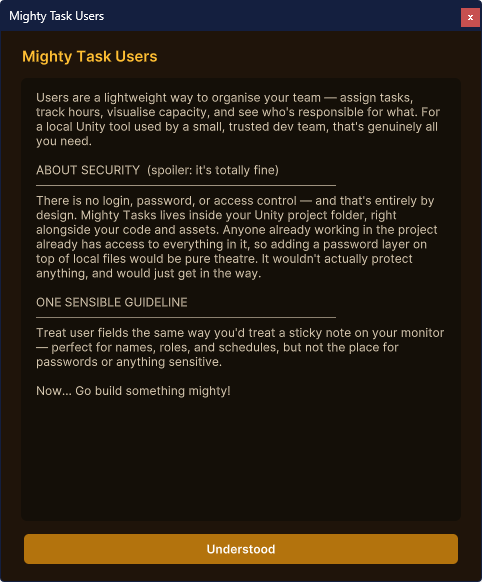
A small "!" button in the toolbar opens a notice explaining that Mighty Tasks users have no authentication they are just profiles for assignment and tracking. This is by design: an in-editor tool does not need login credentials.
How users connect to the rest of the system
- Board capacity CalculateRemainingUnitCapacity sums each assigned user's available hours through the board's end date, respecting their individual HoursPerDay and DaysAtWork .
- Workload coins The Kanban board header shows remaining hours per user. Clicking a coin filters the board to that user's tasks.
- Task assignment Tasks store AssigneeIds (a list of user IDs). Multiple users can be assigned to a single task.
- Time ledger Time log entries record UserId , so the retrospective and analytics can break down hours by contributor.
- Rollup Parent tasks aggregate assignee IDs from children (union), so a parent shows everyone working beneath it.
Support
Thank you!
If you encounter any issues or have questions please contact us directly at
We strive to respond to concerns within 48 hours.
If youre enjoying Mighty Tasks, please leave a nice review, it means the world!
Review Mighty Tasks on the Unity Asset Store